
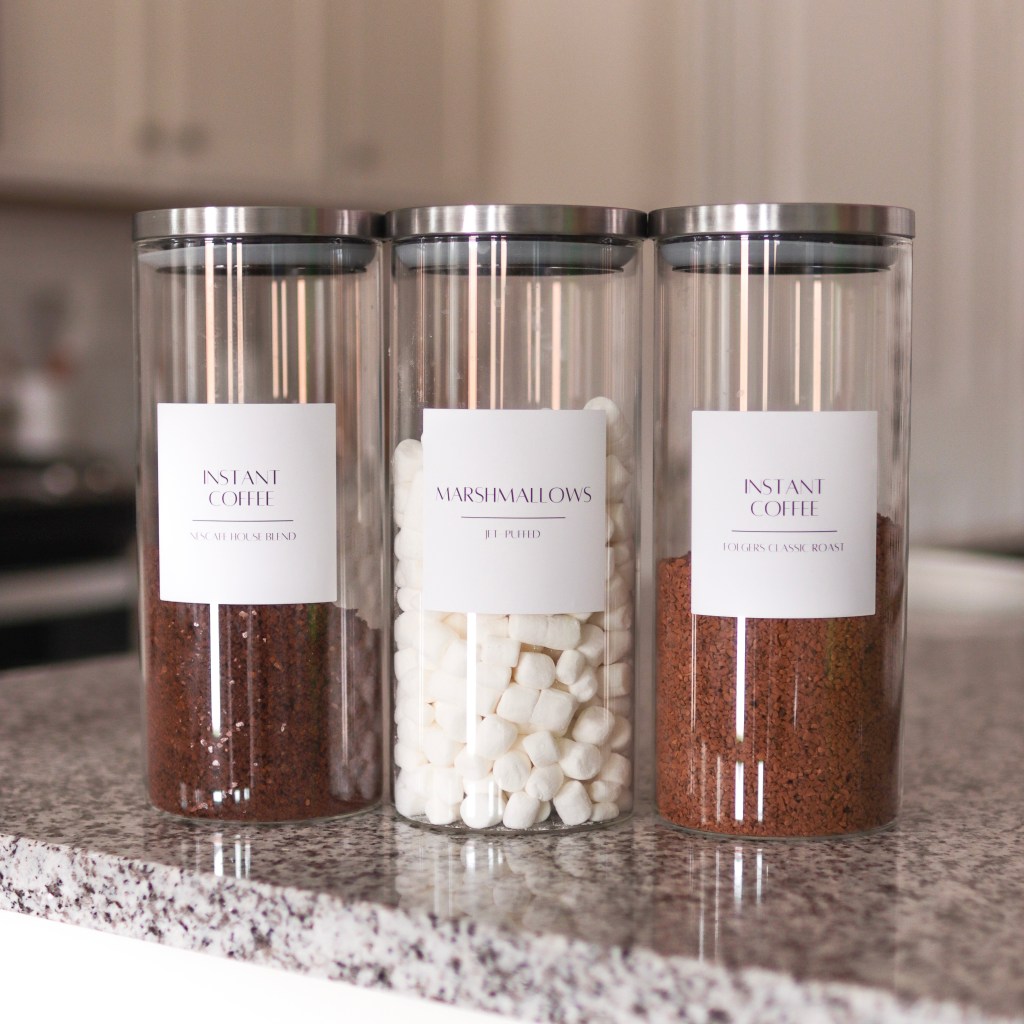
I have a newfound love for organizing, and labeling plays a huge role in that. There are tons of options to purchase labels for your home on Etsy, Amazon, The Container Store and more! I’ve purchased labels from Amazon for my bathroom and coffee station and while they were amazing, I found I needed a little bit more customization. When I need two of the same labels or need “instant coffee” versus “coffee” then customizing is probably the best option!
There are lots of ways to create templates depending on what tools you have available. Since I only have a printer, I’ve found the most convenient and easiest way to make my own labels is with the Avery templates. Avery offers tons of label sizes and finishes (matte, waterproof, glossy) for your needs. I have both square and round, shipping labels and even business cards! You can order directly from their site or on Amazon.
How Do I Start?
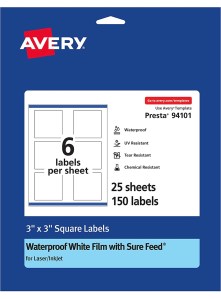
Choose Your Label
The size and shape depends on your preferred style and vision. 3×3 size labels worked best for me!
- Square labels: 2×2 and 3×3
- Address Labels
Avery Design Space
Visit the Avery website where you will be prompted to “Start Your Design”. You will need to create an Avery account using an email address.
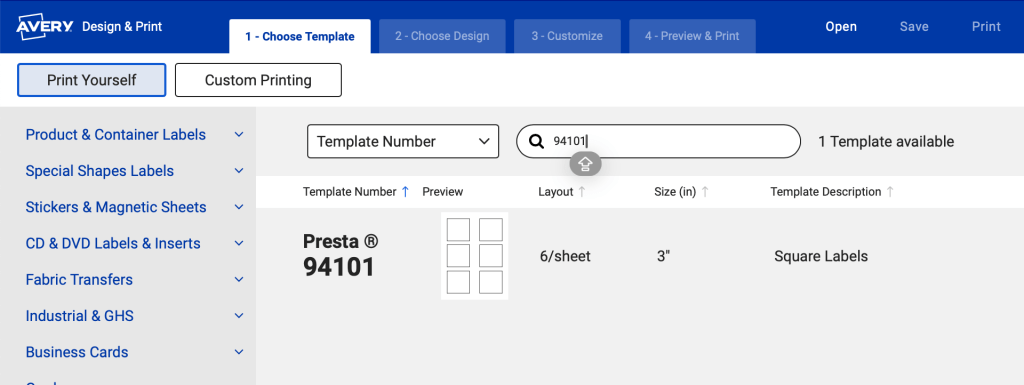
1. Once your account is created, you will search the template number that is listed on the outside of the label packaging.
2. Avery offers templates designs to choose from which is a quick and easy option. For even more customization, I like using Canva to make a design and then upload it to the Avery site. For this option, you would select a blank label in Avery.
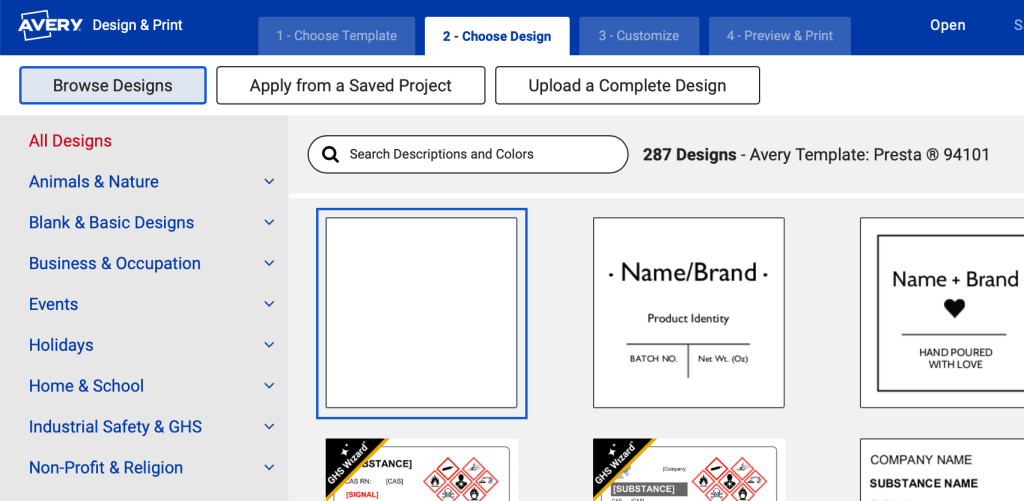
This option is time consuming, but allows for more creativity and I have access to more fonts and images. For best results, create your design on a logo size template in Canva. You can use my template HERE. Export your designs as a JPG or PNG file.
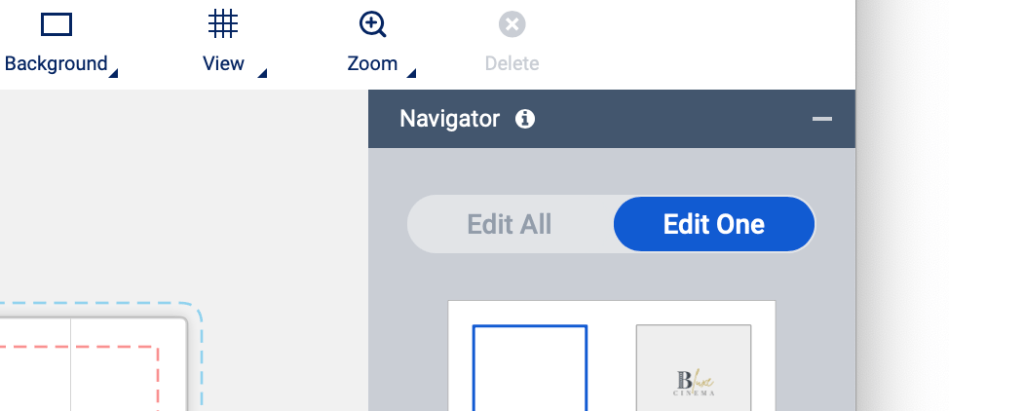
3. Be sure to select “Edit One” before loading your design. The “Edit All” function will load the same design to all labels. Only use this option if you need the same labels for all.
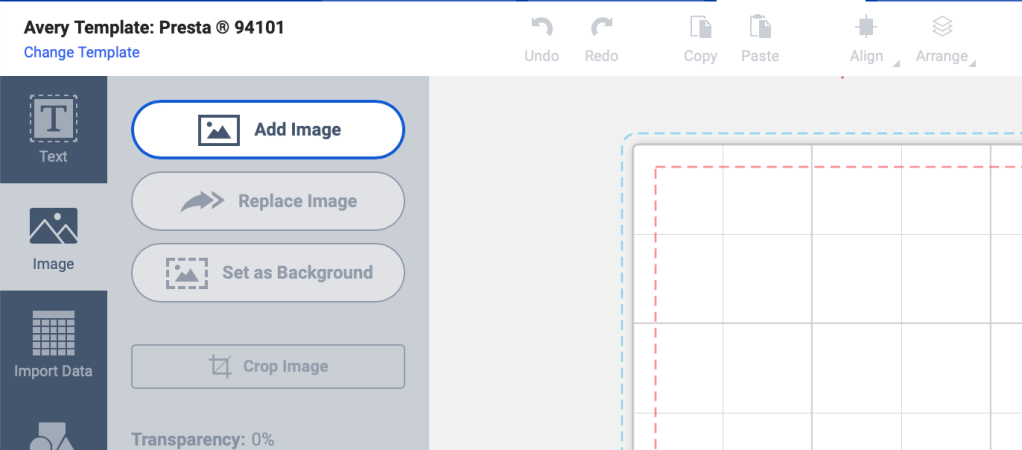
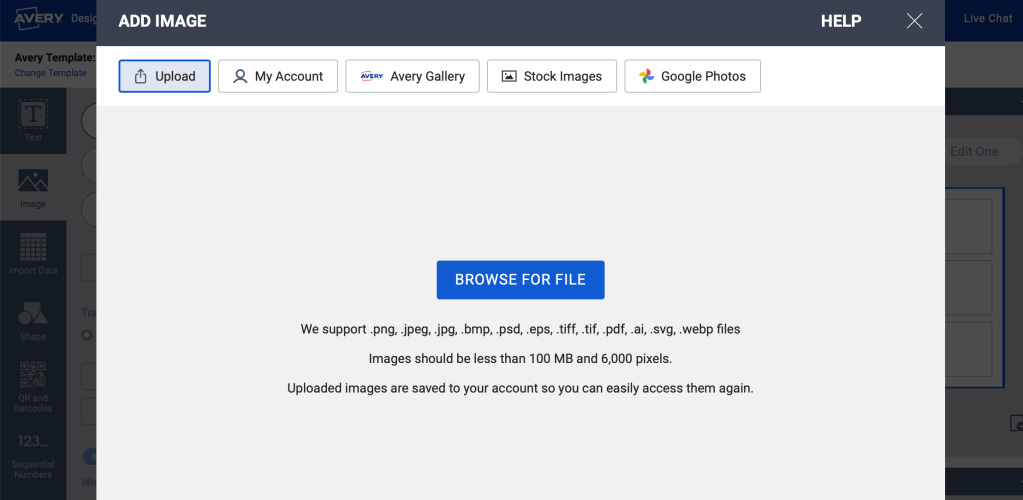
4. You will “Add Image” in Avery where you can upload your downloaded Canva design. Note: You will have to add each design individually to each label page.
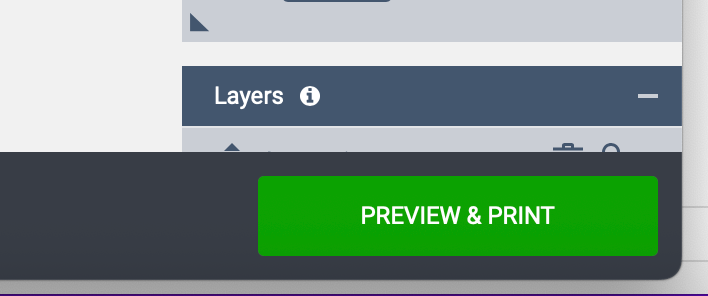
5. Once complete, you will save and preview and print your design. It will download as a PDF.
6. Add your Avery label paper to your printer and print the PDF!
Once completed, you will have beautiful custom labels for your space. Check out the complete process and the final transformation on my TikTok!
If you’re in the midst of organizing, comment down below! I’d love to know how your labels turned out. Remember to subscribe to my email list for more home organizing and tips!
Thanks for reading!
-Riri

 ririroman.com
Leave a comment